
Piso WiFi Help Guide
Grace Piso WiFi: Login, 10.0.0.1, Pause Time & Troubleshooting
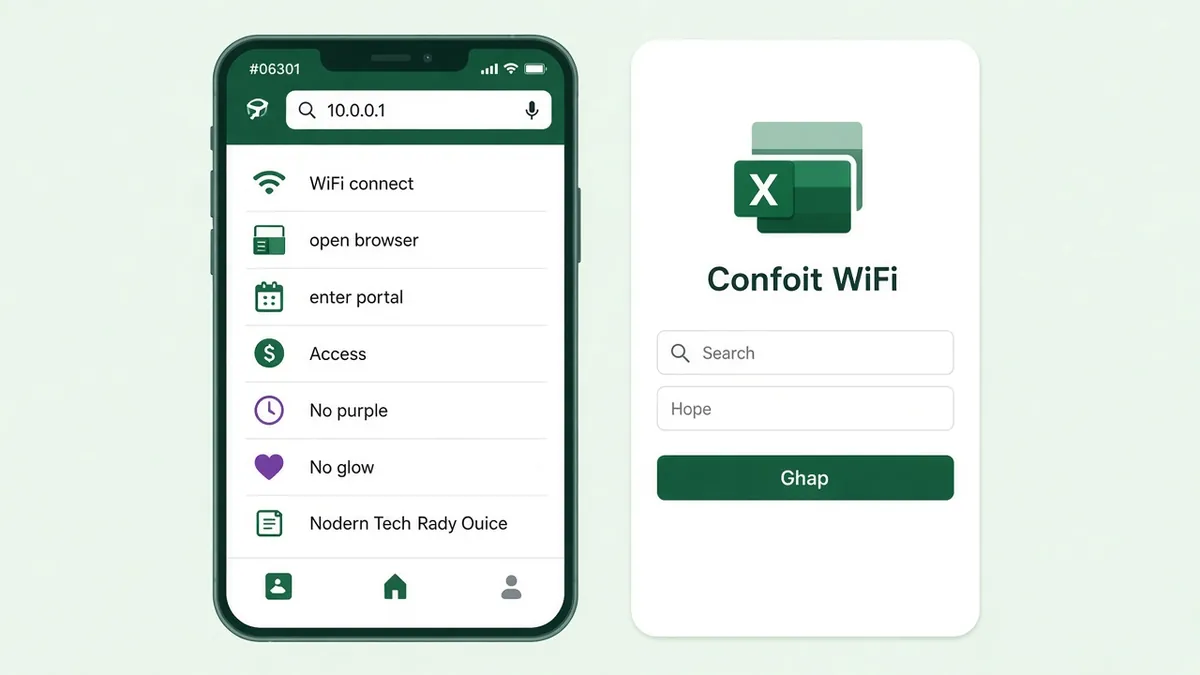
Grace Piso WiFi provides pay-per-use internet access through a WiFi network and a local customer portal. For the broader category, see our Piso WiFi guide. Customers can connect to the available network, open the portal, and follow the payment or voucher instructions displayed by the machine.
The Grace-focused guides reviewed for this topic commonly identify 10.0.0.1 as the customer portal address. However, the exact features and payment options can vary between machines. Not every setup necessarily supports vouchers, GCash, or Pause Time. For general steps, see the Piso WiFi login guide and Pause Time guide.
If you want to access Grace Piso WiFi, start by connecting your phone or computer to the correct WiFi network. Then open your browser and enter http://10.0.0.1 in the address bar.
The address 10.0.0.1 is a local network address. It is not a public website that you can necessarily open while connected to mobile data or an unrelated WiFi network.
Quick Guide: How to Access Grace Piso WiFi
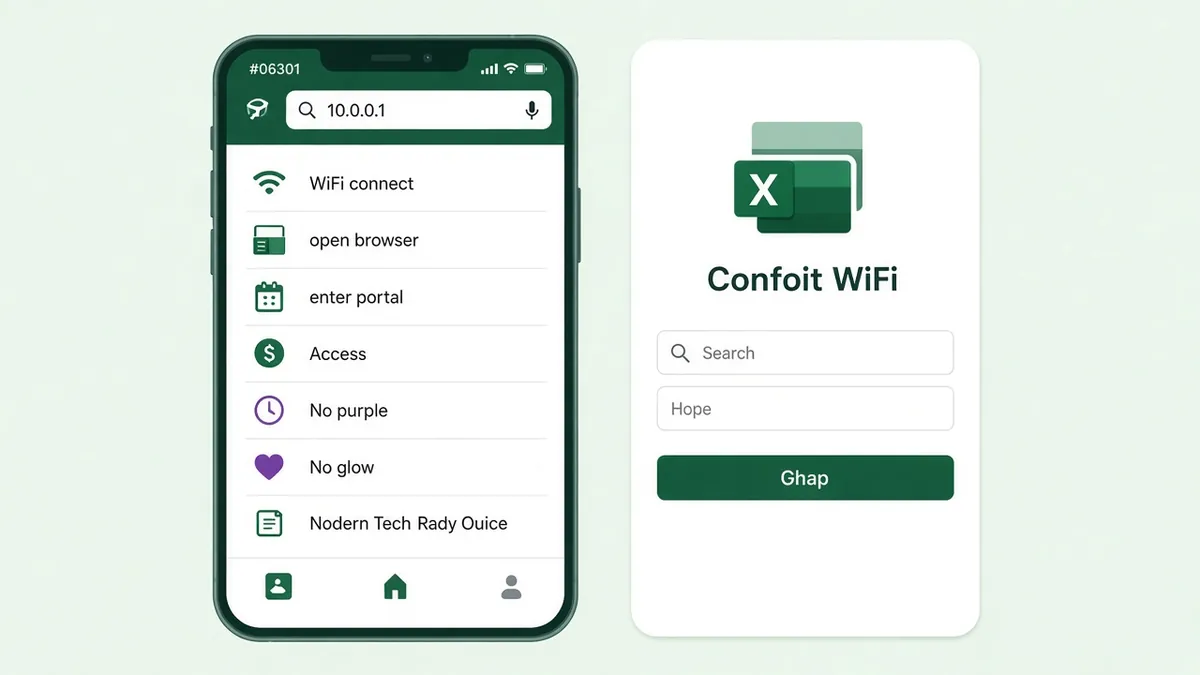
- Turn on WiFi on your phone, tablet, or computer.
- Connect to the Grace Piso WiFi network.
- Open a web browser such as Chrome, Safari, or Firefox.
- Type
http://10.0.0.1into the browser’s address bar. - Open the portal if it loads.
- Follow the payment, voucher, or access instructions shown on the screen.
If the portal does not open, check that you are connected to the correct WiFi network before trying again.
Enter http://10.0.0.1 in the browser’s address bar, not in a search engine’s search box. This helps your browser try to open the local portal directly.
What Is Grace Piso WiFi and How Does It Work?
What Is Grace Piso WiFi?
Grace Piso WiFi is a name used for a pay-per-use WiFi service or vending setup. It allows customers to obtain internet access through a WiFi network, usually by following the instructions displayed on a local customer portal.
Unlike a typical home WiFi connection, where a subscriber pays for an internet plan, a Piso WiFi customer generally pays for access according to the rates and options configured by the machine owner.
The reviewed Grace-focused guides describe a customer portal commonly accessed through 10.0.0.1. The portal may display payment, voucher, or session options depending on the particular machine.
There is no verified official Grace technical manual available in the sources reviewed for this guide. Therefore, the exact software, hardware, and feature set should not be assumed to be identical across all machines using the Grace name. If you are comparing brands, see the Piso WiFi platforms overview.
How Does the Grace Piso WiFi System Work?
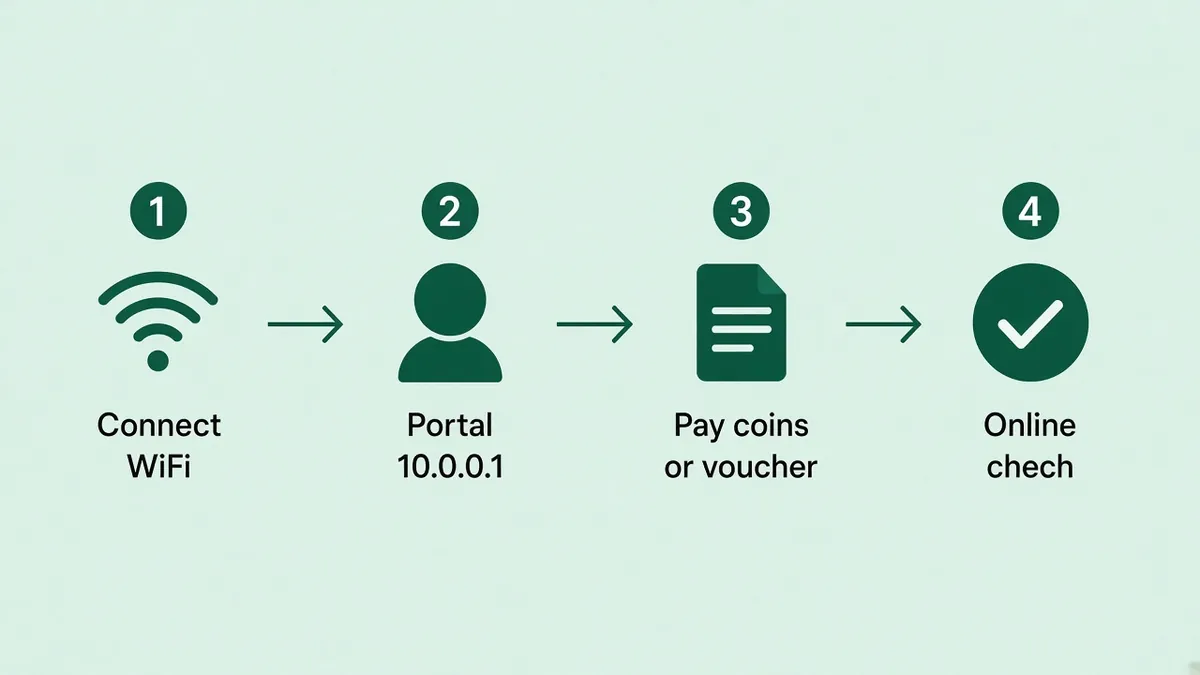
The general customer process has four stages:
- Connect: The customer connects a phone or computer to the available WiFi network.
- Open the portal: The customer visits the local portal, commonly identified as
10.0.0.1in the reviewed Grace guides. - Pay or redeem: The customer follows the payment instructions or enters a voucher if that option is available.
- Use the internet: The system activates the customer’s access according to its configuration.
The machine owner controls important settings, such as the available payment methods and rates. Some machines may also offer voucher access or Pause Time.
The Grace-focused guides reviewed for this page describe a pay-per-use internet service. They do not establish one universal payment rate or one standard configuration for every Grace machine.
How Do Customers Get Internet Access Through Grace Piso WiFi?
To get online, you normally need to connect to the machine’s WiFi network and complete the steps displayed by its portal.
- Find the available Grace WiFi network on your device.
- Connect to that network.
- Open your browser.
- Visit the local portal address shown by the machine or its instructions.
- Check the available payment or voucher options.
- Complete the required steps.
- Open a website to check whether internet access is working.
If you connect to WiFi but cannot access the internet, do not immediately assume that your payment has failed. The WiFi connection, payment confirmation, session activation, and internet connection are separate parts of the process.
What Is the Difference Between Grace Piso WiFi and Regular Home WiFi?
| Feature | Grace Piso WiFi | Regular Home WiFi |
|---|---|---|
| Access | Usually pay-per-use | Usually connected to a subscriber’s internet plan |
| Payment | May use coins or other configured options | Usually paid through an internet service provider |
| Access portal | A local customer portal may be provided | Router or ISP login pages may be used for administration |
| Internet time | May be controlled by a prepaid session | Depends on the subscriber’s plan |
| Pause feature | Depends on the machine’s configuration | Depends on the internet service and router |
| Management | Usually controlled by the machine owner or operator | Usually controlled by the home subscriber or administrator |
The main difference is how customers obtain access. A Piso WiFi customer generally pays for a period of internet use, while a home subscriber uses the service associated with an internet subscription.
Which Features Are Available on Grace Piso WiFi?
Not every feature mentioned online is guaranteed to be available on every machine. Use the following table to understand what is described in the reviewed sources and what you should verify before relying on it.
| Feature | What you should know |
|---|---|
| Customer portal | Grace-focused guides commonly identify 10.0.0.1 as the portal address |
| Coin payment | Described by the reviewed Grace guides, but accepted denominations may vary |
| Voucher redemption | May be available if the portal provides a voucher option |
| Pause Time | Available only if the particular system supports and enables it |
| GCash | Use only if the portal or machine explicitly displays this payment option |
| Admin access | The correct access method and credentials must be confirmed with the machine owner |
| Offline Mode | Mentioned in a competitor FAQ, but its exact meaning depends on the system |
| LED indicators | Meanings depend on the actual hardware model |
| Receipt or voucher printer | May be present on some machines, but is not a universal feature |
Do not assume that a feature is available just because another Grace Piso WiFi machine offers it. Check the options displayed on your machine or ask its owner.
How to Login to Grace Piso WiFi at 10.0.0.1
What Is the Grace Piso WiFi Login Address?
The Grace-focused guides reviewed for this page commonly identify:
http://10.0.0.1
This is a local IP address used to reach a portal on a connected network. It is not the same as a normal public website.
Your device generally needs to be connected to the relevant Grace WiFi network before the local portal can be reached.
If the address does not open, first check your WiFi connection. You may be connected to mobile data, a different WiFi network, or a network that uses another portal address.
How to Connect to the Grace Piso WiFi Network
Follow these steps before opening the portal.
- Open your phone’s or computer’s WiFi settings.
- Make sure WiFi is turned on.
- Look for the network name displayed by the Grace Piso WiFi machine.
- Select the correct network.
- Wait until your device shows that it is connected.
- Open your browser and try the portal address.
If you cannot identify the correct network, check the machine’s display, nearby instructions, or ask the machine owner.
A WiFi network can show as connected even when it does not provide internet access yet. That does not necessarily mean your device has connected to the wrong network.
How to Open the Grace Piso WiFi Portal at 10.0.0.1
After connecting to the network:
- Open Chrome, Safari, Firefox, or another browser.
- Tap the address bar at the top of the browser.
- Enter
http://10.0.0.1. - Press Enter or Go.
- Wait for the local portal to load.
- Follow the options displayed on the page.
If the browser displays an error, return to your WiFi settings and confirm that you are still connected to the correct network.
You can also close the browser and open it again. If the portal still does not appear, follow the troubleshooting steps in the section below.
For a more general explanation of the local login process, see the Piso WiFi login guide.
What Can You Do on the Grace Piso WiFi Customer Portal?
The available options depend on the machine’s configuration.
A customer portal may provide options such as:
- Starting or accessing an internet session.
- Viewing payment instructions.
- Entering a voucher code.
- Checking available internet time.
- Pausing or resuming a session, if supported.
- Viewing session information.
Not every portal will display all these options.
If you cannot find a particular feature, do not assume that it is hidden or that your device is malfunctioning. The machine may not support that option, or the owner may not have enabled it.
What Is the Difference Between the Customer Portal and Admin Panel?
The customer portal and the administrator interface serve different purposes.
| Customer portal | Admin panel |
|---|---|
| Used by customers | Used by the machine owner or authorised administrator |
| Provides customer access options | Provides machine management options |
| May show payment and voucher options | May contain configuration and management settings |
| May show session or Pause Time options | May control available features and settings |
| Does not normally provide full machine administration | Should be accessed only by an authorised person |
A customer who wants to purchase internet time or pause a session should use the customer-facing options.
An owner who needs to change rates, manage the machine, or investigate a machine-side problem should use the authorised management method for that specific system.
The reviewed Grace sources do not establish a universal Grace administrator URL or default administrator username and password. Do not rely on credentials or admin addresses copied from unrelated Piso WiFi systems.
Why Is the Grace Piso WiFi Login Page Not Opening?
If 10.0.0.1 does not open, check the following:
1. Confirm that you are connected to the correct WiFi network.
The local portal is normally accessible through the network it belongs to. Connecting to mobile data or another WiFi network may prevent access.
2. Enter the address correctly.
Type http://10.0.0.1 into the browser’s address bar. Avoid adding spaces or entering a different address.
3. Temporarily turn off mobile data.
Some phones may continue using mobile data when WiFi has no internet access. Temporarily turning it off can help you check whether the browser is trying to use the correct connection.
4. Check VPN settings.
A VPN can change how your device routes network traffic. If the portal does not load, temporarily disconnect the VPN and try again.
5. Reconnect to the WiFi network.
Disconnect from the network, wait briefly, and reconnect. Then open the portal again.
6. Try another browser.
If the page does not open in one browser, try another browser on the same device.
7. Ask the machine owner to confirm the portal address.
The address used by another Piso WiFi system may not be the address configured for this particular machine.
Do not repeatedly enter random IP addresses or change advanced network settings. Ask the machine owner to confirm the correct local portal address if the normal steps fail.
For additional guidance, see the 10.0.0.1 password reset guide. Remember that a customer portal problem and an administrator password problem are not necessarily the same issue.
Grace Piso WiFi Payment Methods, Rates and Voucher Codes
How Much Does Grace Piso WiFi Cost?
There is no single verified price for every Grace Piso WiFi machine.
The amount you pay and the internet time you receive depend on the rates configured by the machine owner. Different locations may offer different prices, payment options, and session durations.
Before paying:
- Check the instructions displayed on the machine.
- Read the available coin or payment options.
- Check how much internet time each payment amount provides.
- Confirm whether the machine accepts vouchers or digital payments.
- Follow the displayed payment process.
Do not assume that a rate advertised by another machine applies to the one you are using.
The machine’s displayed rate is the best reference for the amount of internet time you should receive.
How Many Minutes Do You Get for ₱1?
The number of minutes provided for ₱1 depends on the machine owner’s pricing settings.
There is no verified universal Grace Piso WiFi conversion rate that applies to every location.
For example, one machine may offer a different amount of time from another machine. The owner may also change the rates over time.
To check the correct rate:
- Connect to the Grace WiFi network.
- Open the customer portal if available.
- Look for the displayed coin or payment rates.
- Check the time shown for each payment amount.
- Ask the machine owner if the rate is unclear.
Do not pay based on an assumed number of minutes.
Does Grace Piso WiFi Accept ₱5 and ₱10 Coins?
Coin acceptance depends on the coin acceptor and the machine’s configuration.
Some machines may accept more than one coin denomination, while others may have different payment instructions.
Before inserting a coin:
- Check the machine’s displayed instructions.
- Look for the accepted denominations.
- Make sure the machine is powered and available.
- Follow the payment sequence shown by the owner.
If a coin is not recognised, avoid inserting more coins immediately. Check whether the machine recorded the first payment and contact the owner if the payment was not credited.
Can You Reload Grace Piso WiFi Using GCash?
GCash availability is machine-dependent.
Some Piso WiFi setups may offer digital payment options, but the reviewed sources do not establish that every Grace machine supports GCash.
To check:
- Connect to the correct WiFi network.
- Open the customer portal.
- Review the payment methods displayed.
- Use GCash only if it is explicitly offered.
- Follow the portal’s payment instructions.
- Check whether the payment was confirmed and whether internet time was credited.
If GCash is not displayed, ask the machine owner whether the machine supports it.
Do not send money to a personal GCash number simply because someone claims that it is a Grace Piso WiFi payment method. Use only a payment method confirmed by the machine or its authorised owner.
How to Redeem a Grace Piso WiFi Voucher Code
Voucher redemption is available only when the particular portal provides a voucher option.
If your machine supports vouchers, follow these steps:
- Connect to the Grace Piso WiFi network.
- Open the customer portal.
- Look for a voucher, code, or redemption field.
- Enter the voucher code exactly as provided.
- Check the code before submitting it.
- Follow the confirmation instructions.
- Check whether your internet time or session has been activated.
If the portal does not display a voucher option, the machine may not support voucher redemption or the feature may not be enabled.
Do not enter your voucher code on an unrelated website.
For more general help, read the Piso WiFi voucher code guide.
Why Is Your Grace Piso WiFi Voucher Code Invalid?
A voucher may be rejected for several reasons:
- The code was entered incorrectly.
- The voucher has already been used.
- The voucher has expired.
- The voucher is not valid for that particular machine.
- The voucher has not been activated by the seller.
- The portal is temporarily unable to process the redemption.
Try these steps:
- Check every character in the voucher code.
- Make sure you have not added spaces before or after it.
- Confirm that you are connected to the correct machine.
- Read any error message displayed by the portal.
- Contact the voucher seller or machine owner if the code continues to fail.
Do not repeatedly submit a code if the portal reports that it has already been used.
What to Do If Payment Is Accepted but No Internet Time Appears
A payment problem can happen at different stages. It is important to identify where the process stopped before paying again.
The four stages of payment and internet activation
| Stage | What should happen | What a failure may look like |
|---|---|---|
| 1. Payment accepted | The machine or payment system recognises the payment | The coin or digital payment is not recognised |
| 2. Credit assigned | The system adds the purchased internet time or voucher credit | Payment is recognised, but no time appears |
| 3. Session activated | The customer session becomes available | Time appears, but the session does not start |
| 4. Internet works | The device can access online services | Session appears active, but websites do not load |
Payment accepted, internet time credited, session activated, and internet access working are four different stages. A problem at one stage does not automatically mean the other stages have failed.
How to identify the problem
If the payment was not recognised:
- Check whether the machine displayed a payment confirmation.
- Do not immediately insert another coin.
- Record the amount and approximate payment time.
- Contact the machine owner.
If payment was recognised but no time appeared:
- Check whether the portal refreshed.
- Close and reopen the portal.
- Check the displayed session or remaining-time information.
- Ask the owner to verify whether the credit was assigned.
If time appeared but the session did not start:
- Follow the portal’s displayed start or connection instructions.
- Reconnect to the correct WiFi network if necessary.
- Ask the owner to check the session if it remains inactive.
If the session started but there is no internet:
- Check whether other websites load.
- Confirm that the device is still connected to the correct network.
- Ask the owner whether the machine has an active internet connection.
Do not pay a second time until you have checked whether the first payment was credited.
Payment and Voucher Dispute Checklist
If your payment or voucher does not work, collect the information below before contacting the machine owner or voucher seller.
- ☠Approximate date and time of the payment.
- ☠Amount paid or voucher purchase amount.
- ☠Payment method used.
- ☠Whether the machine or portal displayed a confirmation.
- ☠Whether internet time appeared after payment.
- ☠The exact error message shown by the portal.
- ☠The WiFi network name you connected to.
- ☠Whether the session became active.
- ☠Whether the internet worked after activation.
For a voucher problem, also keep the voucher purchase receipt or reference information.
Do not publicly share your complete voucher code, payment account details, transaction credentials, or other private information. Give the necessary information directly to the authorised machine owner or seller.
Keep a record of the payment before leaving the machine. It is easier for the owner to investigate a payment issue when you can provide the approximate time, amount, and displayed result.
Grace Piso WiFi Pause Time: How to Pause and Resume Your Session
What Is Grace Piso WiFi Pause Time?
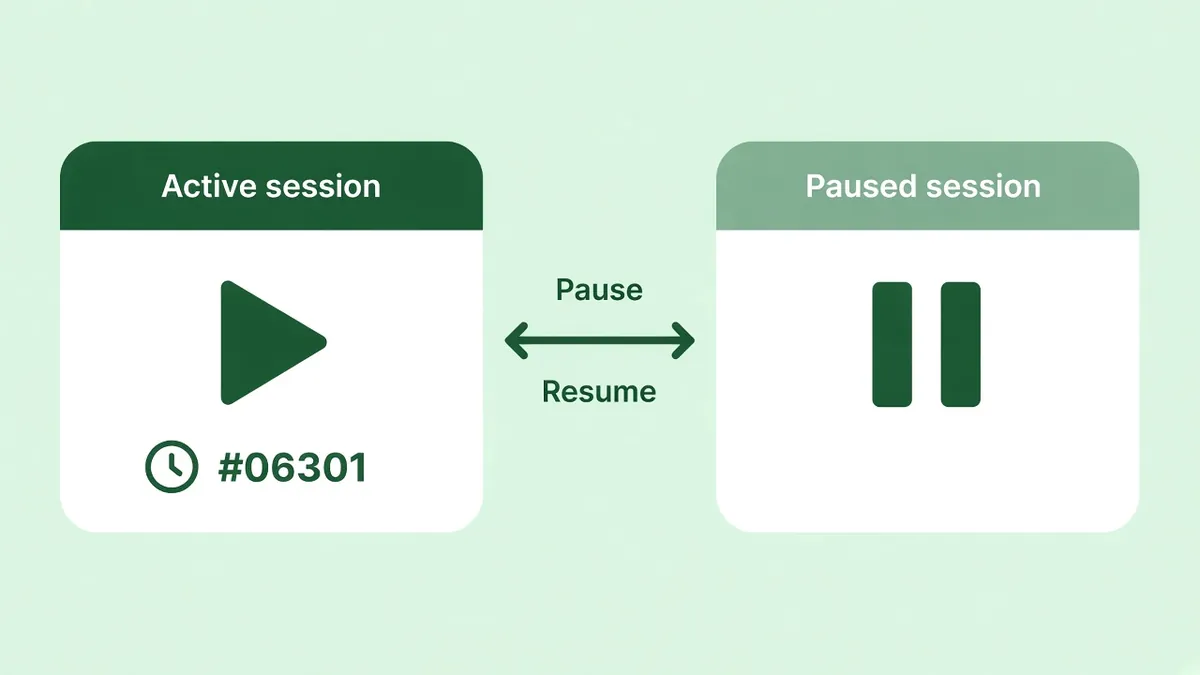
Pause Time is a feature found on some Piso WiFi systems. When supported and enabled, it allows a customer to temporarily stop the countdown of an active internet session.
For example, a customer may want to stop using the internet for a while and continue using the remaining time later.
However, Pause Time is not guaranteed to be available on every Grace machine. Its operation depends on the software and settings used by the particular system.
The TP-Link Philippines Piso WiFi guide explains Pause Time behaviour on other Piso WiFi implementations, including LPB and AdoPiSoft. Those platform-specific instructions should not be treated as proof of how every Grace machine works.
Disconnecting your phone from WiFi does not automatically mean your paid internet time has been paused. You should look for a clear pause confirmation in the customer portal.
How to Pause Your Grace Piso WiFi Time at 10.0.0.1
If your machine supports Pause Time and displays the option, follow these general steps:
- Connect to the same Grace WiFi network used for your session.
- Open your browser.
- Visit
http://10.0.0.1. - Find the active session or Pause Time option.
- Select the pause option if it is available.
- Wait for the portal to respond.
- Check the session status to see whether it shows that the session is paused.
The exact button name and process may differ between machines.
Do not close the portal immediately after pressing Pause. First, check whether the portal confirms that the session has changed to a paused state.
How to Check Whether Your Internet Session Is Paused
After using the Pause option, look for a status message or session indicator on the portal.
Depending on the system, you may see a status such as:
| Session status | General meaning |
|---|---|
| Active | The internet session is currently running |
| Paused | The system indicates that the session has been paused |
| Resumed | The session has started running again |
| Expired | The session is no longer available under its current validity settings |
The wording may differ from one portal to another.
If the portal does not show a clear status, do not assume that the session is paused just because your phone is disconnected.
Confirm the paused status before leaving the WiFi area. This helps avoid relying on a pause action that the system may not have completed.
Why Is the Pause Time Button Missing?
If you cannot find the Pause Time option, there are several possible explanations:
- The machine does not support Pause Time.
- The owner has not enabled the feature.
- Your current session is not in a state where pausing is allowed.
- The portal has not loaded correctly.
- You are using the wrong customer portal or WiFi network.
- The system has a temporary problem.
Try the following:
- Confirm that you are connected to the correct Grace WiFi network.
- Reload the portal.
- Check whether your session is active.
- Look for another session or time-management option.
- Ask the machine owner whether Pause Time is supported and enabled.
Do not try to change administrator settings to make the Pause button appear.
If you need more general information, read the how Piso WiFi Pause Time works and the guide to enabling Piso WiFi Pause Time.
Does Disconnecting From WiFi Automatically Pause Your Time?
No. Disconnecting from the WiFi network and pausing an internet session are not necessarily the same action.
When you disconnect, your device stops using that WiFi connection. However, the system may continue counting down the session unless its Pause Time feature has actually been activated.
The correct approach is to use the Pause option displayed by the portal, if available, and check that the system confirms the paused status.
How Long Can a Grace Piso WiFi Session Stay Paused?
There is no verified universal Grace Piso WiFi pause duration.
The allowed pause period, if any, depends on the system and its configuration. The reviewed sources do not establish one fixed pause limit or expiry time that applies to every Grace machine.
To find out how long your session can remain paused:
- Check the information displayed by the customer portal.
- Look for any session validity or expiry message.
- Ask the machine owner if the portal does not explain the limit.
Do not assume that a paused session will remain available indefinitely.
How to Resume Your Grace Piso WiFi Session
If your session was successfully paused, you may be able to resume it through the customer portal.
Try these steps:
- Connect to the same Grace WiFi network.
- Open your browser.
- Visit the local portal.
- Look for the paused session.
- Select Resume if the option is available.
- Wait for the portal to confirm the action.
- Check whether your remaining time is active again.
The exact process depends on the system.
Can You Resume a Paused Session on Another Phone?
Not necessarily.
Some Piso WiFi systems associate a session with the device that originally started it. Other systems may use different session-management settings.
The reviewed Grace sources do not establish a universal device-switching rule.
For the best chance of recovering your session:
- Use the original phone or device first.
- Connect to the same WiFi network.
- Open the customer portal.
- Check whether the paused session is displayed.
If the session does not appear on another device, return to the original device if possible. Contact the machine owner if the session is still unavailable. To end a session intentionally, see the Piso WiFi logout guide.
Why Is Your Grace Piso WiFi Session Not Resuming?
Possible reasons include:
- The session has expired.
- The system no longer recognises the session.
- You are using a different device.
- You are connected to a different WiFi network.
- The portal is not loading correctly.
- The machine is temporarily unavailable.
- The owner needs to check the session configuration.
Try these steps:
- Reconnect to the original WiFi network.
- Use the device that started the session.
- Reload the customer portal.
- Check the session status.
- Look for an error message.
- Contact the machine owner if the Resume option does not work.
A February 2026 discussion on the Mepis Forum describes general Piso WiFi pause and resume problems and mentions possible issues such as time settings, browser state, IP conflicts, firmware, and power interruptions. These are possible system-side causes, not confirmed Grace-specific faults.
What Happens When Your Paused Session Expires?
If a session reaches its configured expiry condition, the system may no longer allow it to resume.
The exact result depends on the machine’s session rules. A Grace-wide expiry period has not been verified.
If your session cannot be resumed:
- Check whether the portal says that it has expired.
- Confirm that you are using the correct device and network.
- Record any error message.
- Contact the machine owner to ask whether the session can be checked.
Do not purchase another session until you have confirmed whether the previous one has expired or is simply not appearing in the portal.
How to Check Your Remaining Grace Piso WiFi Time
If the customer portal provides session information, look for a remaining-time display.
It may show:
- Remaining minutes.
- An active session timer.
- A paused session status.
- A session expiry message.
The exact display depends on the portal.
If the time appears incorrect:
- Reload the portal.
- Check that you are viewing the correct session.
- Confirm whether the session is active or paused.
- Ask the owner to check the session if the displayed time still appears incorrect.
Grace Piso WiFi Not Working? Common Problems and Solutions
A Grace Piso WiFi problem can happen at different points: connecting to the network, opening the portal, making a payment, activating a session, or accessing the internet.
The best way to solve the issue is to identify what is failing instead of repeating the same action.
Grace Piso WiFi Connected but No Internet
Your phone may show that it is connected to WiFi even when websites do not load.
Possible reasons include:
- Your paid session has not started.
- The payment has not been credited.
- The session has expired.
- The machine’s upstream internet connection is unavailable.
- The device is connected to the wrong WiFi network.
- The portal requires another action before access begins.
Try these steps:
- Open the customer portal.
- Check whether your session is active.
- Confirm whether the payment or voucher was accepted.
- Check whether the portal displays remaining time.
- Disconnect and reconnect to the correct WiFi network.
- Try opening another website.
- Contact the machine owner if the session is active but internet access remains unavailable.
Do not keep paying if your existing session already appears active.
Grace Piso WiFi 10.0.0.1 Not Opening
If the portal does not load:
- Confirm that you are connected to the Grace WiFi network.
- Turn off mobile data temporarily.
- Check that you entered
http://10.0.0.1correctly. - Enter the address in the browser’s address bar.
- Temporarily disconnect a VPN.
- Close and reopen the browser.
- Reconnect to WiFi and try again.
- Ask the owner to confirm the correct portal address.
Remember that 10.0.0.1 is a local network address. It may not open when you are connected to another network.
Payment Deducted but Grace Piso WiFi Is Not Working
First, identify whether the payment was recognised.
Check:
- Did the machine acknowledge your payment?
- Did the portal display a confirmation?
- Was internet time added?
- Did the session become active?
- Can your device access websites?
If money was deducted but no time appeared, contact the machine owner or payment provider as appropriate. Provide the payment amount and approximate time.
Do not immediately pay again. The first payment may have been accepted even if the portal did not update correctly.
Grace Piso WiFi Voucher Accepted but Internet Is Not Working
A voucher being accepted does not always mean that the device has successfully connected to the internet.
Check these points:
- Did the portal confirm that the voucher was accepted?
- Did it show internet time or an active session?
- Are you still connected to the correct WiFi network?
- Does the portal display any additional start or connection instruction?
- Can another website load?
If the voucher was accepted but no session appeared, ask the owner to verify whether the voucher credit was assigned.
If the session is active but websites do not load, the issue may be with the machine’s internet connection or another part of the system.
Grace Piso WiFi Keeps Disconnecting
Frequent disconnections can happen for several reasons.
Possible causes include:
- Weak wireless signal.
- Distance from the access point.
- Physical obstacles.
- Wireless interference.
- Too many connected devices.
- A temporary machine or network issue.
Try these steps:
- Move closer to the WiFi machine.
- Check whether your phone remains connected.
- Turn WiFi off and on again.
- Reconnect to the correct network.
- Check whether other users are experiencing the same problem.
- Contact the owner if the connection continues to drop.
The exact wireless range and maximum number of devices depend on the hardware and configuration. There is no verified universal Grace signal range or device limit.
Grace Piso WiFi Time Keeps Running Out
If your remaining time is decreasing when you are not actively browsing, check whether the session was actually paused.
Possible explanations include:
- The Pause option was not used.
- The portal did not confirm the pause.
- The machine does not support Pause Time.
- The session continued running after disconnection.
- The displayed session status has not updated.
To prevent this problem:
- Open the customer portal.
- Use Pause Time if the option is available.
- Wait for confirmation.
- Check that the session status changes.
- Ask the owner if the timer continues running despite a confirmed pause.
Simply turning off WiFi or closing the browser may not stop the session countdown.
Grace Piso WiFi Pause Time Not Working
If the Pause button does not respond:
- Check that your session is active.
- Reload the customer portal.
- Reconnect to the same WiFi network.
- Try the Pause option again if it is still available.
- Check whether the portal displays a confirmation.
- Contact the owner if the session continues running.
Do not repeatedly press the button without checking the session status. The system may have processed the first request even if the page did not update immediately.
What to Check on Android, iPhone and Computers
The general portal process is similar across devices, but their network settings may differ.
| Device | What to check |
|---|---|
| Android phone | Correct WiFi network, mobile data, VPN, browser address bar |
| iPhone | Correct WiFi network, mobile data, VPN, browser address bar |
| Windows computer | WiFi connection, browser, VPN, network selection |
| Mac computer | WiFi connection, browser, VPN, network selection |
For any device:
- Connect to the correct WiFi network.
- Open a browser.
- Enter the local portal address.
- Check whether the portal loads.
- Follow the displayed payment or session instructions.
If the portal does not open on any device, the issue may be with the network or machine rather than one particular phone.
Symptom-Led Grace Piso WiFi Troubleshooting Guide
Use this table to identify what to check first.
| What you experience | First thing to check | Next action |
|---|---|---|
10.0.0.1 does not open | Correct WiFi network | Reconnect and ask the owner to confirm the portal address |
| WiFi connects but no internet | Session status | Check payment and session activation |
| Payment is accepted but no time appears | Credit assignment | Record payment details and contact the owner |
| Voucher is rejected | Code accuracy and validity | Contact the voucher seller or owner |
| Voucher is accepted but no internet works | Session activation and network | Check the portal and contact the owner |
| Pause button is missing | Feature availability | Ask whether Pause Time is supported and enabled |
| Time keeps running | Pause confirmation | Check session status and contact the owner |
| Session will not resume | Original device and expiry status | Try the original device and ask the owner to check |
| WiFi keeps disconnecting | Signal and connection stability | Move closer and report persistent problems |
| Machine appears offline | Machine availability | Contact the owner |
Customer vs Owner: Who Should Fix the Problem?
Not every problem can be solved from a customer’s phone. Some issues require access to the machine or its management settings.
| Problem | Customer can check | Machine owner may need to check |
|---|---|---|
| Portal does not open | WiFi connection, browser, local address | Portal availability and network configuration |
| Payment not credited | Payment amount, time, confirmation | Payment record and credit assignment |
| Voucher rejected | Code accuracy and voucher details | Voucher validity and activation |
| Pause button missing | Whether the portal displays the option | Whether the feature is supported and enabled |
| Session will not resume | Original device, network, displayed status | Session status and machine configuration |
| Connected but no internet | WiFi connection and session status | Upstream internet connection and machine status |
| Frequent disconnections | Device location and WiFi signal | Wireless equipment and network conditions |
| Coin not recognised | Payment instructions and accepted denominations | Coin acceptor and payment hardware |
| Machine appears offline | Whether the WiFi network is available | Power, equipment, and internet connection |
Customers should not attempt to change administrator settings, open the machine, or repair electrical components. Ask the owner to handle problems that require machine access.
When Should You Contact the Grace Piso WiFi Machine Owner?
Contact the owner when:
- Your payment was accepted but no internet time appeared.
- A voucher was rejected even though its details appear correct.
- Your session is missing or cannot be resumed.
- The portal does not display an expected feature.
- The WiFi network is unavailable.
- Several users experience the same connection problem.
- The machine appears to be offline.
- A coin was accepted but no credit was assigned.
Before contacting the owner, prepare the payment or voucher information and the exact error message. This makes it easier to identify the issue.
For broader troubleshooting, see the fix common Piso WiFi problems.
Grace Piso WiFi Offline Mode, Machine Status and Connectivity
What Is Offline Mode in Grace Piso WiFi?
Offline Mode is a term mentioned in one of the reviewed Grace competitor FAQs. However, no official Grace documentation was found that defines one universal Offline Mode behaviour.
In general, an offline status may indicate that a machine or service is not currently available for normal internet access. The exact meaning depends on the system displaying the message.
If you see an Offline Mode message:
- Check whether your device is still connected to the WiFi network.
- Reload the customer portal.
- Check whether other users are experiencing the same problem.
- Look for any message displayed by the machine.
- Contact the machine owner if the service remains unavailable.
Do not assume that Offline Mode means your payment or voucher has been lost. Ask the owner to check the session and machine status.
Why Is a Grace Piso WiFi Machine Offline?
Possible reasons include:
- The machine has lost power.
- The upstream internet connection is unavailable.
- The router or access point is not operating correctly.
- The machine is being restarted or maintained.
- A network or hardware problem has occurred.
These are general networking possibilities, not confirmed Grace-specific failure codes.
Customers can check whether the WiFi network is visible and report the problem. The owner may need to inspect the internet connection, power supply, and equipment.
Why Is Grace Piso WiFi Slow?
Slow internet can have several causes. The problem may come from the internet connection, wireless signal, network congestion, or the device being used.
Possible factors include:
Weak WiFi signal: Your device may be too far from the access point or separated by walls and other obstacles.
Network congestion: Many connected users may share the available internet connection.
Upstream internet performance: The machine may have a slow or unstable connection from its internet provider.
Device problems: Background downloads, updates, or other applications may use bandwidth on your phone or computer.
Try these steps:
- Move closer to the WiFi machine.
- Pause large downloads or streaming applications.
- Disconnect and reconnect to the WiFi network.
- Check whether other users are experiencing slow internet.
- Contact the owner if the problem affects multiple users.
What Affects Grace Piso WiFi Signal Strength and Coverage?
Wireless coverage depends on the equipment and the environment.
Factors that may affect signal strength include:
- Distance from the access point.
- Walls and other physical obstacles.
- Interference from nearby wireless networks.
- Equipment placement.
- Hardware capabilities.
- The number and activity of connected devices.
There is no verified standard Grace Piso WiFi signal range that applies to every machine.
If your signal is weak, move closer to the machine and check whether the connection improves. If the signal remains poor throughout the area, report it to the owner.
Can Multiple Devices Use One Grace Piso WiFi Session?
This depends on the session-management settings of the particular machine.
Some Piso WiFi systems may associate a session with the device that started it. Other systems may have different rules.
The reviewed Grace sources do not establish a universal maximum number of devices or a guaranteed way to share one paid session.
For the safest approach:
- Check the machine’s displayed instructions.
- Use the device that originally started the session.
- Do not assume that a voucher or payment can be transferred between phones.
- Ask the owner whether multiple-device access is supported.
What Should You Do If the Machine’s LED or Printer Is Not Working?
Some Piso WiFi machines may include status lights, coin acceptors, or receipt and voucher printers. These components are not confirmed as standard equipment on every Grace machine.
If a status light appears unusual, do not rely on a colour guide from another model. LED meanings can differ between hardware devices.
If a printer is installed but does not work:
- Check whether the machine displays a printer error.
- Ask the owner whether the printer is currently available.
- Do not open the machine or attempt electrical repairs.
- Report the issue to the owner.
The owner should use the documentation for the exact hardware model to identify indicator lights and printer faults.
When Does a Grace Piso WiFi Machine Need a Technician?
A technician may be required if:
- The machine repeatedly loses power.
- The WiFi equipment does not start.
- The coin acceptor does not recognise payments.
- The machine has damaged cables or hardware.
- A persistent fault remains after the owner checks the system.
- The network equipment requires repair or replacement.
Customers should report these problems to the owner. Repairs involving power supplies, internal wiring, or network equipment should be handled by an authorised person.
Grace Piso WiFi Owner Access and Basic Machine Information
This section is for machine owners and authorised administrators. Customers who only want to buy internet time, redeem a voucher, or pause a session do not normally need administrative access.
How to Access the Grace Piso WiFi Admin Panel
The exact administrator access method for a Grace machine has not been verified through an official Grace manual or manufacturer source.
Do not assume that every Grace machine uses the same administrator address or login credentials.
If you own or manage a machine:
- Identify the exact hardware and system installed.
- Check the installation documents provided by the supplier.
- Ask the supplier for the authorised administrator access method.
- Use only credentials issued to you or your organisation.
- Keep administrator details private.
A customer portal and an administrator interface are not necessarily the same page.
The address 10.0.0.1/admin is used by some Piso WiFi systems, but it has not been verified as the universal Grace administrator address. Do not treat it as a confirmed Grace login URL.
For general information about different systems, see the Piso WiFi platforms guide.
What to Do If You Forget Your Grace Piso WiFi Admin Password
If you are the authorised owner and have forgotten the administrator password:
- Check the documentation supplied with the machine.
- Contact the original supplier or installer.
- Confirm the exact system and hardware before following a recovery procedure.
- Use the official recovery instructions for that system.
- Change the password after regaining access, if the system allows it.
- Store the new credentials securely.
Do not try random default passwords from unrelated Piso WiFi brands. A password that works on another system may not apply to your machine.
For general information about local router and admin password recovery, see the 10.0.0.1 password reset guide.
Which Grace Piso WiFi Settings Are Controlled by the Machine Owner?
Depending on the system, the owner may control settings such as:
- Payment methods.
- Coin rates.
- Voucher availability.
- Session rules.
- Pause Time availability.
- Network settings.
- Machine availability.
- Maintenance and support arrangements.
The exact options depend on the system installed on the machine.
Customers should not attempt to change these settings. If a feature is missing or a payment option is unavailable, ask the owner to confirm whether it is supported.
Does a Piso WiFi Business Need an NTC Permit in the Philippines?
The legal requirements for operating a Piso WiFi business should not be reduced to a universal yes-or-no answer.
An NTC Freedom of Information response concerning a Piso WiFi permit inquiry directed the requester to the NTC Citizens Charter and provided contact details for further enquiries. It did not establish a blanket rule that every Piso WiFi setup is automatically permitted or prohibited.
Requirements may depend on the actual business arrangement, the internet service being resold or shared, the equipment, and applicable local rules.
If you operate a Piso WiFi business:
- Contact the National Telecommunications Commission (NTC) for guidance on the requirements that apply to your setup.
- Ask your local government unit (LGU) about applicable business registration and local permits.
- Check the terms and conditions of your internet service provider.
- Keep any relevant business and equipment documentation.
Do not rely only on a competitor’s legal FAQ or another machine owner’s experience. Confirm the requirements for your own business with the relevant authorities.
Frequently Asked Questions About Grace Piso WiFi
Is Grace Piso WiFi Free to Use?
Grace Piso WiFi is generally described as a pay-per-use internet service. Customers usually need to pay according to the rates displayed by the machine or use a valid voucher if that option is available.
Does Every Grace Piso WiFi Machine Support Pause Time?
No universal Pause Time feature has been verified for every Grace machine. The option depends on the system and whether the owner has enabled it. Check the customer portal or ask the machine owner.
Does Grace Piso WiFi Work Without an Internet Connection?
A customer may be able to connect to the local WiFi network even when the machine’s upstream internet connection is unavailable. However, connecting to WiFi does not guarantee access to online websites. Contact the owner if the machine appears offline.
Can I Use Grace Piso WiFi Without a Voucher?
If the machine accepts coin payments or another displayed payment method, you may be able to access it without a voucher. Voucher requirements depend on the machine’s available options.
Does Grace Piso WiFi Have a Default Admin Password?
A universal Grace default administrator password has not been verified. Machine owners should use the credentials and recovery instructions supplied for their exact system. Do not use passwords copied from unrelated Piso WiFi setups.
Can I Use One Grace Piso WiFi Account on Two Phones?
That depends on the machine’s session-management settings. Some systems may associate a session with the device that started it. Check the machine’s instructions or ask the owner before trying to use one session on multiple phones.
Does Grace Piso WiFi Work in Provincial Areas?
Availability depends on whether a machine has been installed in the area and whether it has a working internet connection. The reviewed sources do not establish universal Grace coverage across provincial locations.
What Should I Do If My Payment Is Accepted but My Session Does Not Start?
First, check whether the portal displays a payment confirmation and whether internet time was credited. Reopen the portal and check the session status. If no time appears, record the payment amount and approximate time, then contact the machine owner. Do not pay again until the first transaction has been checked.
Final Summary
Grace Piso WiFi provides pay-per-use internet access through a WiFi network and a local customer portal. The Grace-focused guides reviewed for this page commonly identify 10.0.0.1 as the portal address.
To use the service, connect to the correct WiFi network, open the portal, and follow the payment or voucher instructions displayed by the machine.
Remember these important points:
10.0.0.1is a local network address, not a public website.- Payment rates are set by the machine owner.
- Voucher and GCash options depend on the machine.
- Pause Time is available only when the system supports and enables it.
- Disconnecting from WiFi does not necessarily pause your paid session.
- The original device may be the safest device to use when recovering a session.
- A payment being accepted does not automatically mean that internet access is working.
- Administrator addresses and passwords must be confirmed with the machine supplier or authorised owner.
- Machine-specific issues may require the owner or a technician.
If you experience a problem, identify whether it involves WiFi connection, portal access, payment, session activation, or internet connectivity. This makes it easier to find the correct solution and avoid paying again unnecessarily.